Your private media library (Premium)
Every premium customer gets their own private library
Every premium customer with VIP access gets their own empty library just for themselves – for their own videos and music. Nobody else sees it, and there is no shared collection. We provide no content: the media library is not a streaming service and not part of the regular plans. The administrator grants VIP access on request.
What is it?
The media library is a playback interface for your own files – for example family videos, your own recordings or movies and music you lawfully own. You upload them to your private area and then watch them comfortably in the browser, on your phone or on your TV.
- Only your library: you see exclusively what you yourself have uploaded. Other customers don't see your content – and you don't see theirs. There are no shared libraries and no catalog.
- No content from us: DasDing does not sell, lend or distribute movies, series or music.
- Your responsibility: only upload content you hold the rights to (your own recordings, discs you bought yourself for private use). Passing it on or making it publicly accessible is not allowed.
Address: media.net-freaks.com:8920
Upload your own content
- Sign in to the DasDing program.
- In the 🏠 Personal area, open your media folder (it is set up with VIP access).
- Upload files with ⇪ Upload files or by dragging them into the window.
- After a short while, the media library automatically adds new files to your library.
Order helps
Create separate subfolders for videos and music – then everything is sorted neatly.
Sign in in the browser
- Open the address above in your browser (Firefox, Chrome, Edge or Safari).
- Enter your DasDing user name and your password – the same credentials as in the program.
- Click Sign In. With Remember Me you don't have to enter the password every time.
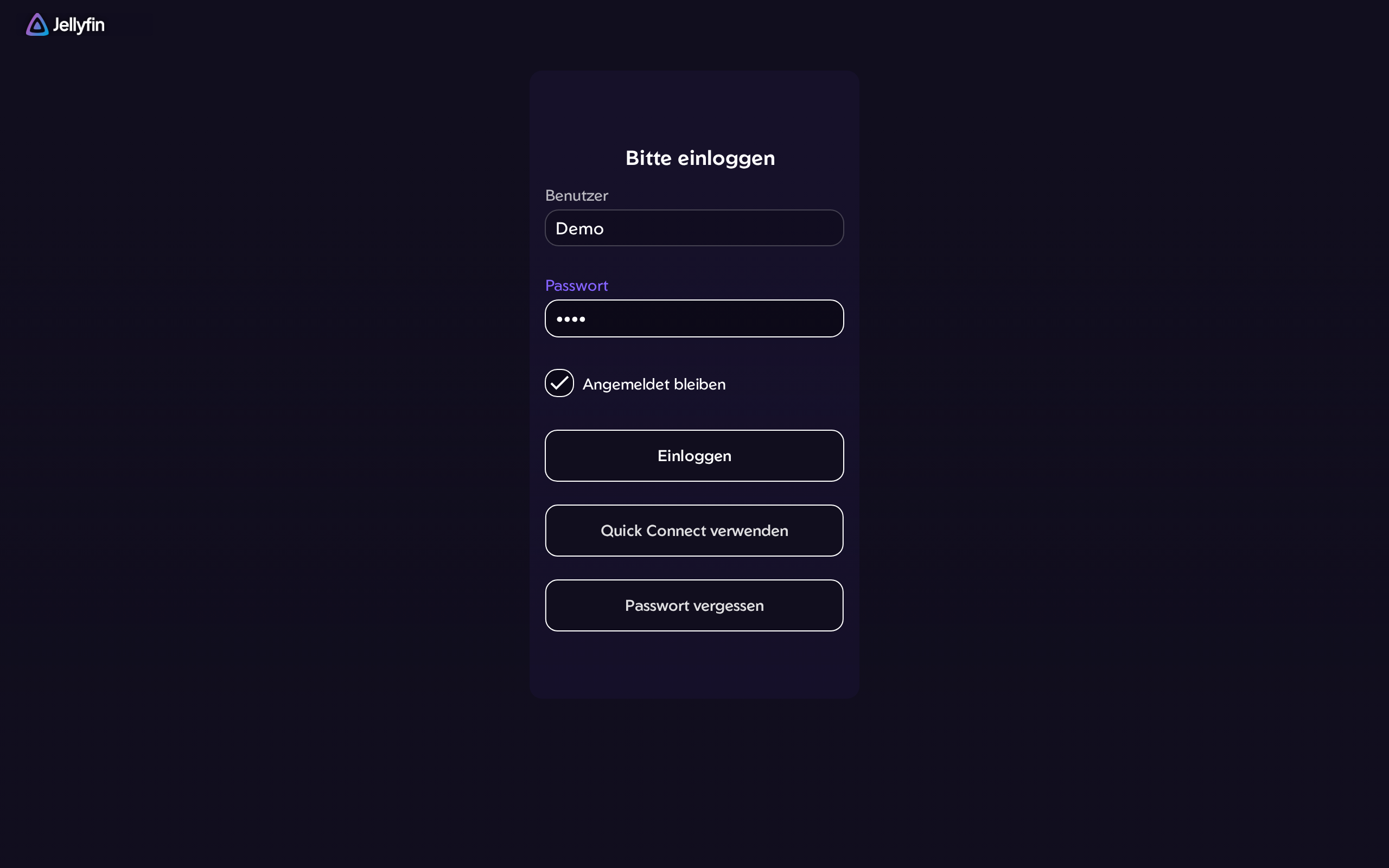
After signing in you see the start page with your library.
Playback
- Open your library.
- Choose one of your files.
- Click ▶ Play.
The media library remembers where you stopped – even on another device.
Apps for phone and TV
The media library runs on the free software Jellyfin – that's why the matching apps have this name:
| Device | App |
|---|---|
| Android | Jellyfin in the Google Play Store |
| iPhone / iPad | Jellyfin Mobile or Swiftfin in the App Store |
| Android TV / Google TV | Jellyfin for Android TV in the Play Store |
| Amazon Fire TV | Jellyfin in the Amazon Appstore |
| Smart TV (LG, Samsung) | depending on the model in the TV's app store, otherwise via a Fire TV or Google TV stick |
How to set up the app:
- Install and open the app.
- Under Server, enter the address from above: media.net-freaks.com:8920
- Sign in with your DasDing user name and password.
Privacy
- Your media library is private: only you have access. The files are stored on our server in Switzerland.
- We don't look at your content and don't analyze it. Only what is needed for playback is stored (e.g. where you stopped).
- Details are in the privacy policy.
Change password
Easiest in the DasDing program: at the top right 🔑 → Change password. The new password applies to your whole DasDing account, including the media library.
Problems?
- “Invalid username or password” – pay attention to upper and lower case. Forgot your password? → Reset password
- A new file doesn't appear – wait a few minutes; the media library checks your folder regularly.
- Video stutters – during playback, choose a lower quality via the gear ⚙.
- The app can't find the server – enter the address exactly as shown above, including
https://.