
DasDing – the program
With DasDing you have your personal storage on your computer – plus sync, drive, cloud connections, sharing files by link, media player, password vault, encrypted containers, installing software safely, chat, remote help with Quick Support, SSH console, the AI assistant Maya, an ISO downloader and USB boot sticks. All program features are included in every plan – and in the program itself, the 📖 Guides tab explains every feature step by step.
Download the program: download.dasding.tech
Install
Windows (10 and 11)
- On the download page, click Download installer.
- Double-click the downloaded file.
- If “Windows protected your PC” appears: click More info and then Run anyway. The program is safe, it just isn't registered with Microsoft yet.
- Click through the installer. Afterwards you'll find DasDing Download in the Start menu.
Linux
Ubuntu / Debian / Mint: download the .deb package and double-click it, or in the terminal:
sudo apt install ./DasDing-Download_*_amd64.debAll others: download the AppImage, right-click → Properties → allow Run as a program, then double-click.
Sign in
- Start the program.
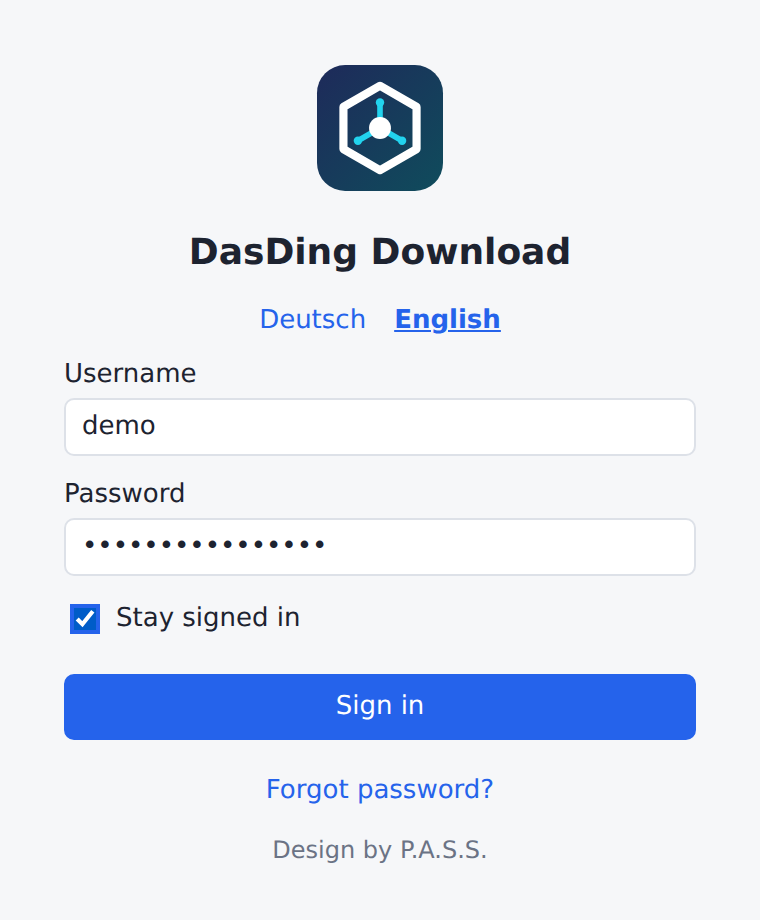
- At the top, choose Deutsch or English if you like – the choice is saved to your account.
- Enter the user name and password of your DasDing account (from buying the plan or from the administrator).
- If you don't want to enter the password every time: tick Stay signed in.
- Click Sign in.
Personal area
Your files are in the 🏠 Personal area tab. Only you see them.
- Open a folder in the folder tree on the left; you see the files on the right.
- Click ⇪ Upload files or simply drag files and folders into the window.
- To download, select files and click ⇩ Download. At the bottom you see the progress; transfers can be paused and resumed – even after a restart.
- Right-click to rename, move or delete. Deleted items stay in the recycle bin for 30 days.
At the top you see how much storage you use and how much is still free. DasDing downloads large files in three parts at the same time – this makes it faster even over slow connections.
Search and filter
The 🔍 Search the whole area … field in the toolbar searches all folders of your area. Clicking a result opens the folder and highlights the file; a double-click downloads or plays it. Next to it, the file type filter shows only videos, audio, pictures, documents or archives of the current folder; “Filter …” searches only the current folder.
Share files by link (Shared)
This is how you give a file to someone who doesn't have DasDing:
- Click the file, then 🔗 Shared.
- DasDing moves the file to the Shared folder of your area (you are asked first).
- Set a password for the link (at least 6 characters) → Create link → 📋 Copy.
- Send the link and the password to the person – preferably separately, for example the link by e-mail and the password by message.
The person opens the link in the browser, enters the password and downloads the file – without an account, without the program.
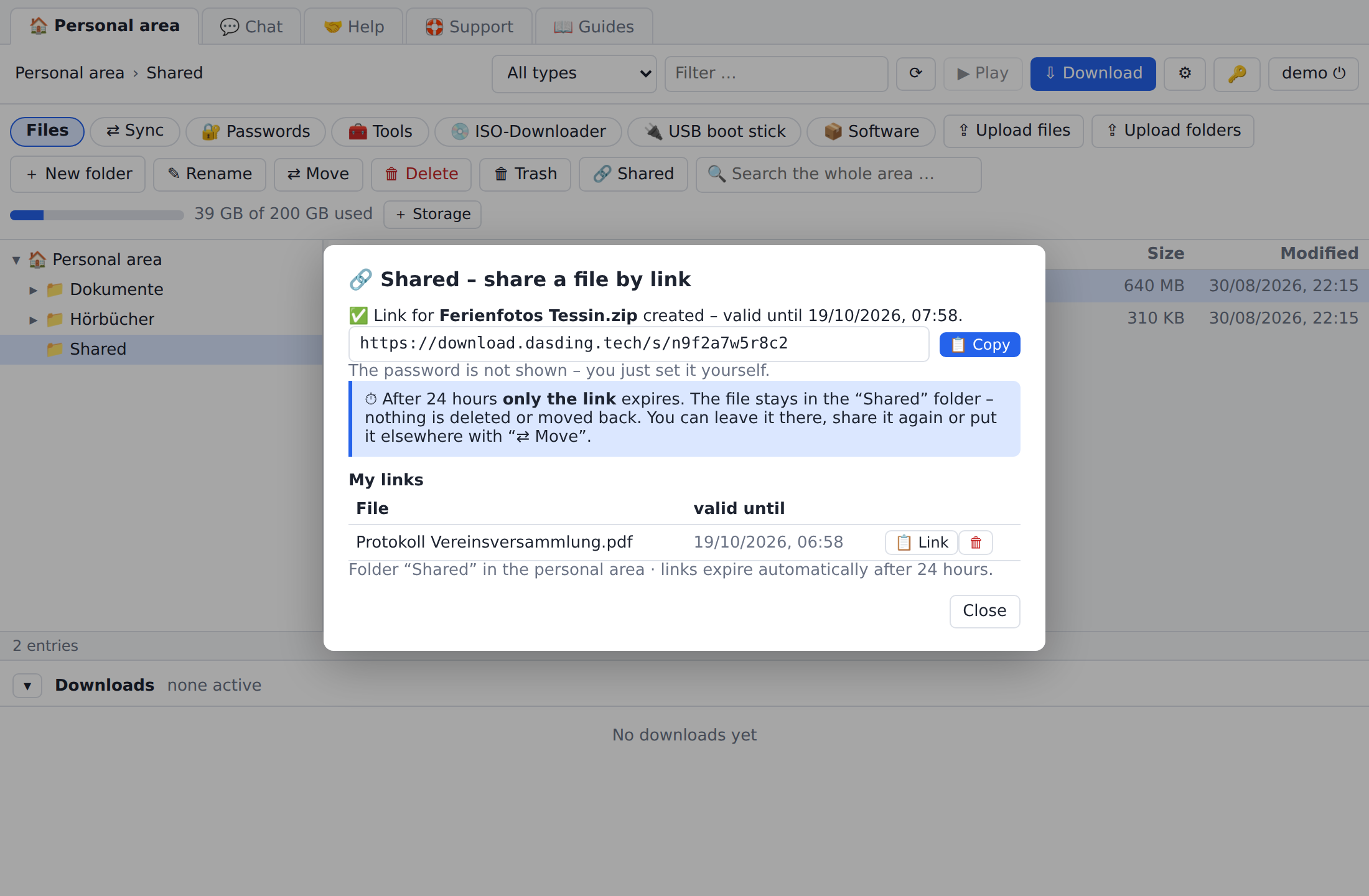
The link is valid for 24 hours
After that, only the link expires – the file stays unchanged in the Shared folder. Under 🔗 Shared you see all your links and can delete them earlier at any time. Sharing only works with files from your own area – and only with files you are allowed to pass on.
Notes
In the 🖥 SSH window at the top right: 📝 Notes – a notepad that saves automatically as you type and is the same on all your devices. Notes you mark as “critical” are moved into the password vault.
Limit bandwidth
Under Settings → Bandwidth limit you can limit the speed so that there is still internet left for other things (0 = unlimited).
Play audio and video
You recognize media files in the personal area by the 🎬 or 🎵 in the list. A double-click or ▶ Play opens them in a separate player window: a playlist from the folder, keyboard control, position and volume are remembered, audio files in a slim view. The program fetches the data directly into the player, just like when downloading – no copy is created on the server.
Formats the built-in playback can't handle (for example AVI, WMV or HEVC in MKV) open with one click in VLC or mpv, if one of the two is installed. Only your own files are played.
View pictures
Open photos and pictures in the personal area with a double-click or 🖼 View right in the program: the arrow keys browse through all pictures of the folder, the mouse wheel or a click zooms, Download saves the picture as usual. Only the displayed picture and the next one are fetched. On the phone a tap on the picture is enough; swiping moves on.
Office – PDF, spreadsheets and text
Open documents in the personal area with a double-click in a separate editor window:
- PDF: fill form fields, rotate, delete and insert pages, put a visible signature or text on the page, flatten the form.
- Spreadsheets (.xlsx): edit cells and formulas, several sheets.
- Text (.docx): write with headings, bold and italic, lists, quotes and links. Documents with tables or images are shown view-only for now, so nothing gets lost.
💾 Save writes the file back to your storage – the old version stays intact if something goes wrong –, as a copy creates a new file next to it. With + New PDF, + New spreadsheet and + New text document you create blank files; the 🕘 Recent documents button finds your latest documents again. The editor always shows where the file lives. Everything runs on your device – nothing goes to a third-party service. On the phone, documents are displayed; editing is done on the computer.
Mail
In the 📧 Mail tab you read and write with your existing mail accounts. Pick the provider, enter address and password – server settings are preset for GMX, WEB.DE, mail.ch, Bluewin, Infomaniak, Hostpoint, mailbox.org, Posteo, IONOS, Strato, T-Online, freenet, Vodafone, 1&1, iCloud and Yahoo; with Gmail, Outlook.com and Microsoft 365 you sign in in the browser and never type a password into the program. Microsoft 365 also works with business accounts, including shared mailboxes. A search field finds sender, subject and text.
Your credentials live only in the password vault on your device, mail stays with your provider, and the connection goes directly there – never through a DasDing server. HTML mail is shown without scripts and without external images; you load images on request.
Integrations
The 🔗 Integrations tab brings your web services into the program: Nextcloud, Jellyfin, Gitea, Forgejo, GitLab, Mastodon, Mattermost, Rocket.Chat, Element, Paperless-ngx, Immich, PhotoPrism, Seafile, HedgeDoc, Penpot, Planka, WordPress, Moodle, BigBlueButton, Proxmox VE, Portainer, Grafana and more – over 90 services in total. Server tools often run on their own port, which belongs in the address (e.g. https://server.example.org:8006); the window needs a domain with a valid certificate. Each service runs in its own isolated window; you sign in once on the provider's original sign-in page – two-factor code included – and from then on one click on Open is enough. For self-hosted services you enter the address of your instance once.
DasDing never signs in for you and doesn't know your password with the service. The session is saved encrypted in your vault when you close the window and restored when you open it. Foreign links open in your normal browser, and Disconnect deletes everything again. More in the guide Integrations.
Sync folders
🏠 Personal area → ⇄ Sync
- Switch on sync.
- Add one or more folders on your computer.
- From now on, DasDing keeps changes in sync automatically – even when the window is closed (the program then keeps running in the notification area).
If a very large number of files is deleted at once, DasDing asks first – so nothing gets lost by accident.
Mount as a drive
🏠 Personal area → 🧰 Tools → 💽 Mount as a drive
Your storage appears as a drive in Windows Explorer or in the Linux file manager. You work with it like with a normal hard disk. On Windows, a small driver (WinFsp) is installed the first time – the program guides you through it.
Connect other clouds
🏠 Personal area → 🧰 Tools → ☁ Cloud connections
- Add connection and choose Nextcloud, Dropbox or OneDrive.
- Nextcloud: enter the address, user and an app password. Dropbox/OneDrive: sign in in the browser.
- Then copy files back and forth between your storage and the other cloud.
Password vault
🏠 Personal area → 🔐 Passwords
- Create a new vault with a master password (and optionally a key file) – or import an existing KeePass file.
- Entries with user, password, address and notes; password generator; search.
- The file is KeePass-compatible (KDBX 4) – you can also open it with KeePassXC.
Keep your master password safe
Encryption and decryption happen only on your device. Without the master password nobody can open the vault – not even we can. Print the emergency sheet when you create it.
Encrypted containers
🏠 Personal area → 🧰 Tools → 🔒 Encrypted containers
For everything that needs special protection: DasDing creates a VeraCrypt container (100 MB to 10 GB), stores it in your storage and opens it as a drive when needed. VeraCrypt must be installed for this – the program shows you the link.
Container protection: before every upload, the server keeps the previous version for 24 hours. With ↩ Previous version in the container tab you bring one of them back – for example if an upload was interrupted. In addition, DasDing never uploads a local copy whose size doesn't match the version on the server.
Chat
💬 Chat tab: create a chat account once, then Open chat. Groups, pictures and messages run on our own server – in the program, in the browser and with the Element app on your phone.
Remote help
🤝 Help tab: this is where you help each other at the screen.
- Switch on I'm available – then others can send you a request.
- Or request someone from the list: “I'd like to see your screen” or “I'd like to show you mine”.
- Nothing is shared until the other person accepts. Whoever shares chooses the screen or window themselves.
- If you like, Request control – the sharing person must explicitly allow it and can take it back at any time.
- You can end it at any time – in the Help tab, in the red notice window at the top of the screen or with Ctrl+Shift+F12.
With 🔧 Connection test you check whether your device is ready. The connection is end-to-end encrypted, nothing is recorded. Remote control works on Windows and on Linux with X11.
Quick Support – help for people without DasDing
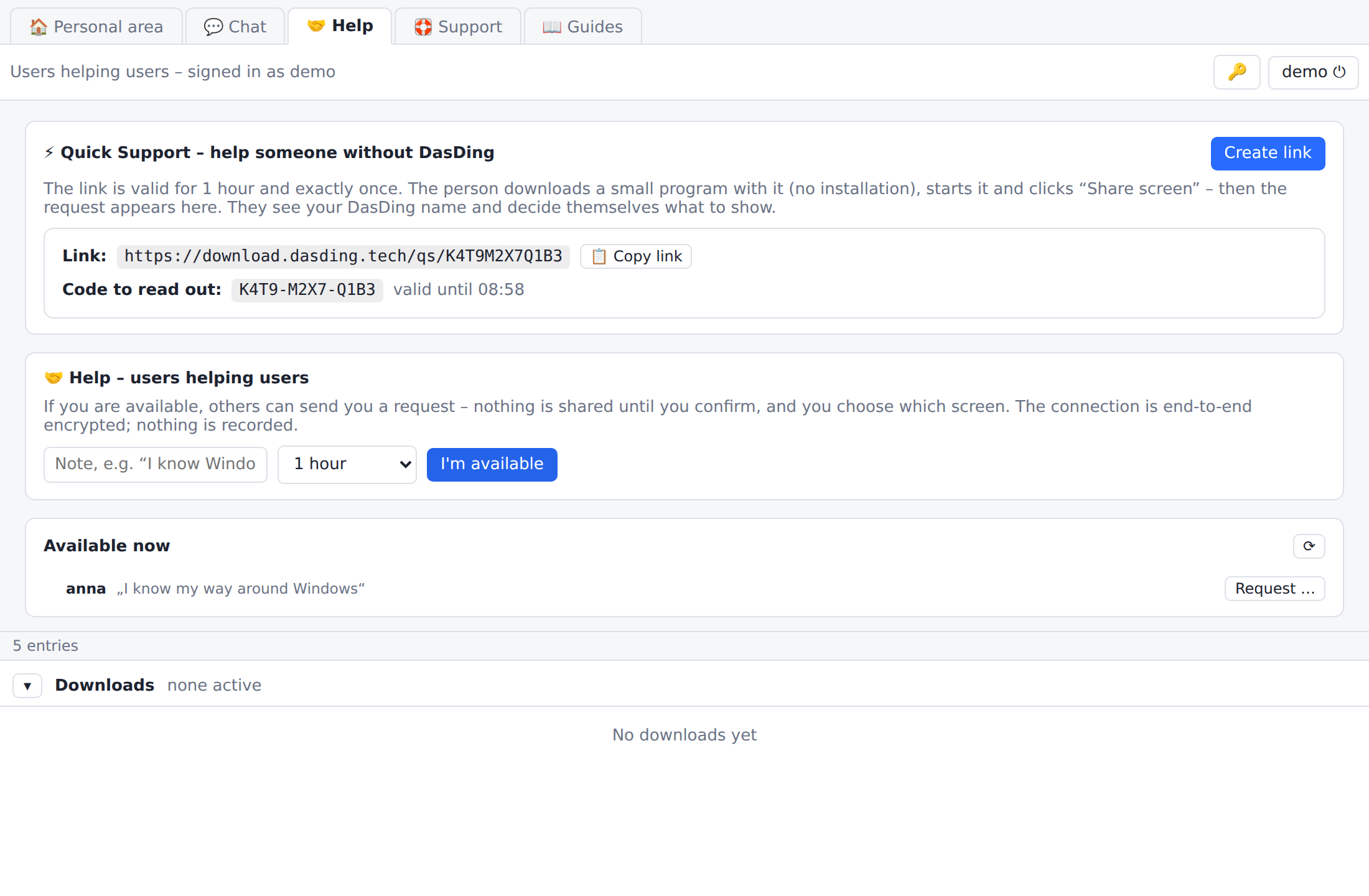
Someone without a DasDing account needs help at the screen? Under 🤝 Help → ⚡ Quick Support you create a one-time link (valid for one hour, exactly one session). The person opens it in the browser, downloads a small program without installation – the code is already in the file name – and clicks “Share screen”. They see your name, choose the screen or window themselves, a red notice stays at the top, and Ctrl+Shift+F12 ends it at any time. Control only if they explicitly allow it.
ISO downloader
🏠 Personal area → 💿 ISO downloader
Download around 70 operating systems and tools directly from the vendor's official source, up to date every day – sorted into categories: 🐧 Linux (Ubuntu with Kubuntu, Xubuntu, Lubuntu, MATE, Budgie, Studio, Cinnamon, Edubuntu; Debian with six desktops and as DVD; Linux Mint, LMDE; Fedora Workstation, Server, KDE, Xfce, Silverblue; openSUSE; Rocky, AlmaLinux, CentOS Stream; Arch, Pop!_OS, NixOS, Alpine, KDE neon, Void, Gentoo, deepin, Bazzite, antiX, MX, Puppy), 🪟 Windows 10/11, 😈 FreeBSD and OpenBSD, 🛡 security & privacy (Kali, Kali Purple, Parrot, Tails, Qubes), 🖧 server & virtualization (Proxmox VE, Backup Server, Mail Gateway, XCP-ng, TrueNAS, openmediavault) and 🧰 tools (GParted, Clonezilla, SystemRescue, Rescuezilla, Hiren's BootCD PE, Memtest86+, Ventoy LiveCD).
- Choose the category at the top, click the system you want and ⬇ Download (for Windows, choose the language first).
- After downloading, DasDing checks every file with the vendor's checksum (for Debian, Ubuntu, Mint and Kali also the signature). Only then is it “✓ verified”.
- The ISO files are stored on your computer (default:
Downloads/DasDing-ISOs) and appear under “My ISOs”.
Windows
Windows is requested directly from Microsoft. You need your own license for activation.
USB boot stick
🏠 Personal area → 🔌 USB boot stick
Turns an ISO file into a bootable USB stick – similar to Rufus.
- Choose ISO – from the ISO downloader or your own file.
- Choose USB stick – only USB sticks are shown, never built-in hard disks.
- Choose the type:
- Write image 1:1 – for Linux and tools. DasDing reads the stick back afterwards to verify it.
- Ventoy – for Windows ISOs and for several ISOs on one stick. You simply copy more ISOs onto it later.
- Confirm – all data on the stick is deleted. On Linux the system asks for your password, on Windows for permission.
Secure Boot with Ventoy
When a PC with Secure Boot starts from a Ventoy stick for the first time, choose “Enroll key” once and confirm.
Install software and keep it up to date
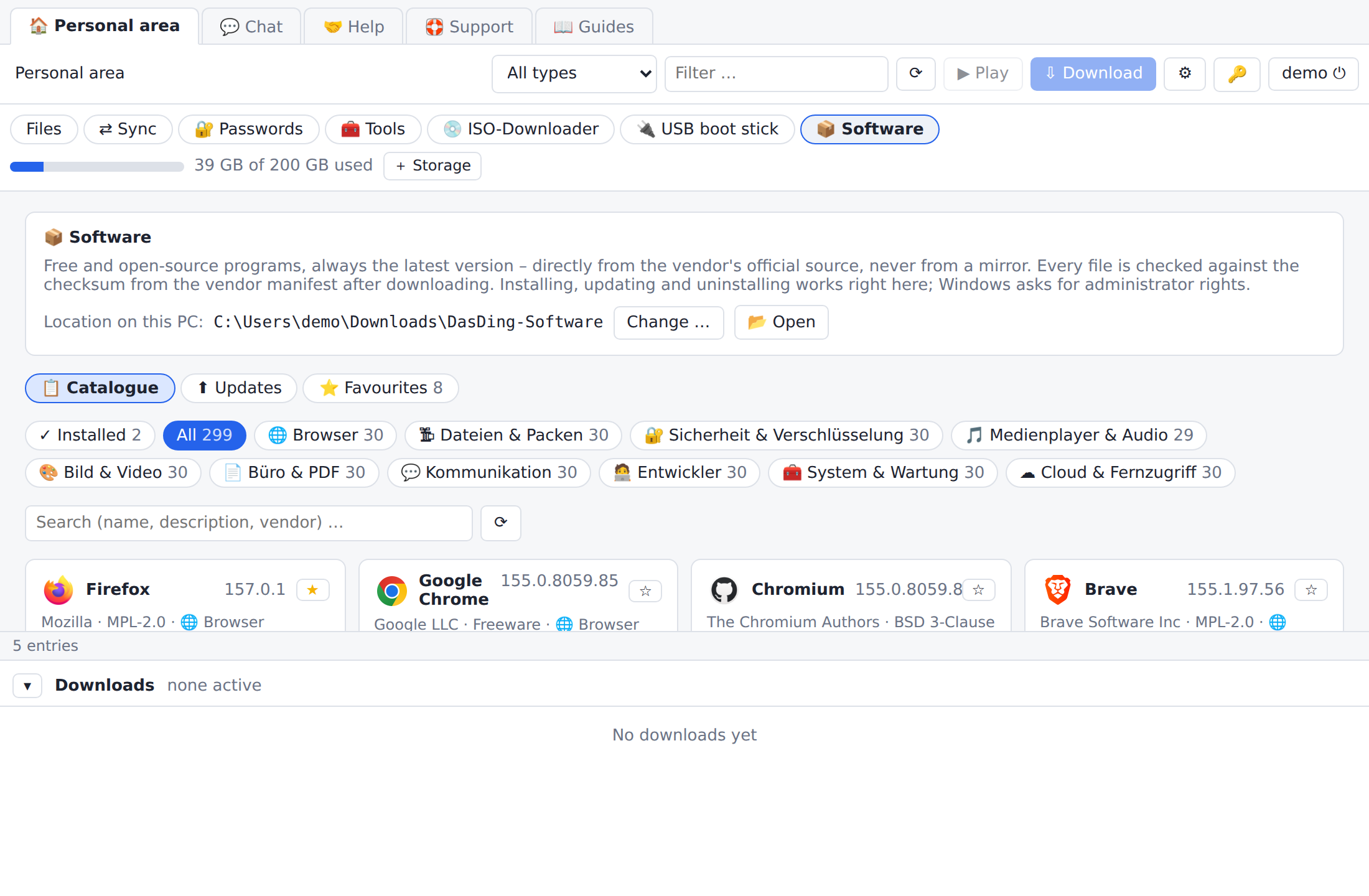
🏠 Personal area → 📦 Software
Around 300 free and open-source programs for Windows in ten categories – browsers, files & archiving, security, media players, image & video, office & PDF, communication, developers, system & maintenance, cloud & remote access. The list is refreshed daily and always shows the current version. Every file comes directly from the vendor's official source – never from a mirror, never from our server – and is checked against its checksum after downloading.
- Choose a category at the top or type in the search field.
- ⬇ Download – the file is saved in the “DasDing-Software” folder under Downloads.
- Install – Windows asks for administrator rights. Many programs install silently in the background, others show their own installer.
- Afterwards the card shows ✓ installed with the version. If there is a newer one, ⬆ Update appears.
- Uninstall removes the program via Windows, as under “Apps & features”.
The ⬆ Updates tab only shows installed programs for which there is a newer version. Update per row or Update all – the programs are downloaded, checked and installed one after the other; Windows asks once per program. Programs without an installer (for example Rufus or Ventoy) are only downloaded and opened in the folder. Every card shows the vendor's original logo.
Favourites – a new computer in one go
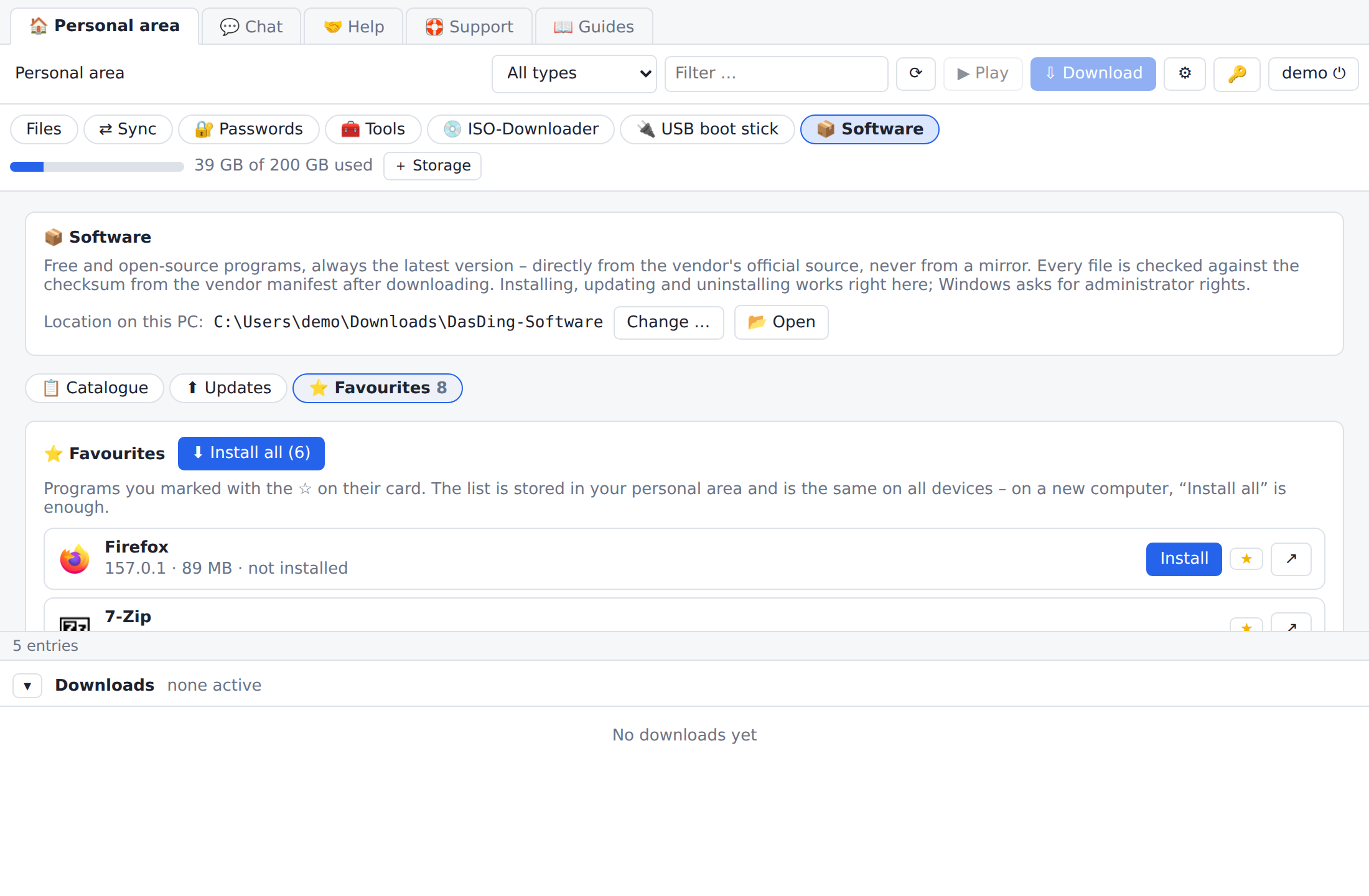
With the star ☆ on a card you remember a program. Your favourites are stored in your personal area and are the same on every device. In the ⭐ Favourites tab you see which of them are installed, outdated or not there yet – Install all does everything one after the other. That's how you set up a new computer with your usual software in one go.
The programs belong to their vendors
DasDing only helps with downloading from the official source. Some programs are freeware with their own vendor licence (for example Malwarebytes, AnyDesk, TeamViewer) – this is shown on the card as “vendor licence”. On Linux the area shows around 240 programs from Flathub, the shared app directory for Linux – installed via Flatpak just for your user, without administrator rights, with updates and favourites as on Windows. If Flatpak is missing, a one-time sudo apt install flatpak (Ubuntu, Debian, Mint) or sudo dnf install flatpak (Fedora) is enough.
SSH console
🖥 SSH tab: SSH windows to your own servers right in the program – several sessions side by side as tabs. The connection goes directly from your device to the server; our server is not involved.
- ➕ Add server: name, address, user. Recommended: SSH key in the vault – DasDing creates a key and stores it encrypted in your password vault.
- When connecting for the first time, sign in once with the password and choose “Connect and store now” – after that, one click on the server is enough, on all your devices.
- Already connected via ⚡ Quick connect? ⭐ Save as 1-click server turns it into a saved server with a key.
- 📁 Files shows the files on the server: upload and download, rename, delete.
Copy and paste: paste with Ctrl+V or right-click; copy: select text, then Ctrl+C or right-click (without a selection, Ctrl+C stays “cancel”).
When connecting for the first time, DasDing shows the server's fingerprint. If it changes later, DasDing warns clearly – then please check before you continue. Two-factor sign-in is mandatory for the SSH console.
AI assistant Maya
🖥 SSH → 🤖 AI assistant
Maya helps you with Linux, Windows, servers and SSH: answering questions, writing commands and scripts, explaining error messages.
- Maya doesn't run anything herself. You take over suggestions with ⌨ Paste into the terminal – without Enter. You check the command and start it yourself.
- With 📎 you attach selected text from the terminal. Passwords and keys are removed first.
- If you ask Maya to remember something (“Remember that web01 runs Debian 13”), she knows it next time too. Under 🧠 you see what she knows and can have her forget everything.
- Every person has their own Maya: what you tell her or what she remembers is seen by no one else.
Good to know
There is a daily message limit. Two-factor sign-in is mandatory for Maya.
Maya as an agent on your computer (pairing)
🖥 SSH → 🤖 → 🔗 Pair
Maya can also work directly on one of your computers or servers – as an agent. The program used is Claude Code; but it runs with our Maya (same personality, your memory), via DasDing and without an account of your own at Anthropic.
- Create pairing code (valid for 10 minutes).
- Run the command shown on the computer – Linux in the terminal (also in an SSH session), Windows in PowerShell.
- After that you start Maya there with
dasding-ki.
Maya asks before every action in the terminal. Every computer gets its own access, which you can unpair at any time under 🔗 Pair. On Windows, Claude Code also needs “Git for Windows”.
Guides and support in the program
The 📖 Guides tab explains every feature in plain words – what a password vault is, an encrypted container, an SSH key, two-factor sign-in and more. Under 🛟 Support you reach us with one click by e-mail, chat or ticket; user name, program version and system are already filled in.
All guides are also available here on the website: 📖 Guides – sorted by topic, searchable.
Account and security
At the top right 🔑: Change password – applies to your whole DasDing account, and if you like also to the private audiobooks – and set up two-factor sign-in (with an authenticator app). A device remembered as trusted is valid for 7 days and bound to the computer – on someone else's device a code is always required. Write down the recovery codes. DasDing installs new versions automatically; the program remembers the size and position of the window, and the downloads bar at the bottom can be collapsed.
Problems?
- “Session expired, please sign in again.” – just sign in again. Running transfers are paused and can be resumed afterwards.
- Sign-in doesn't work at all any more after several attempts – after 10 failed attempts, access is blocked for 30 minutes. Wait a moment.
- Forgot password – in the sign-in window, click Forgot password?: link by e-mail (if an address is stored, 🔑 → ✉ E-mail address) or a request to the admins, see Forgot password.
- Storage full – delete files (the recycle bin empties after 30 days) or add more storage.